Managing employee attendance across multiple offices, branches, or restricted work locations can be challenging — especially when not all employees should be allowed to clock in everywhere.
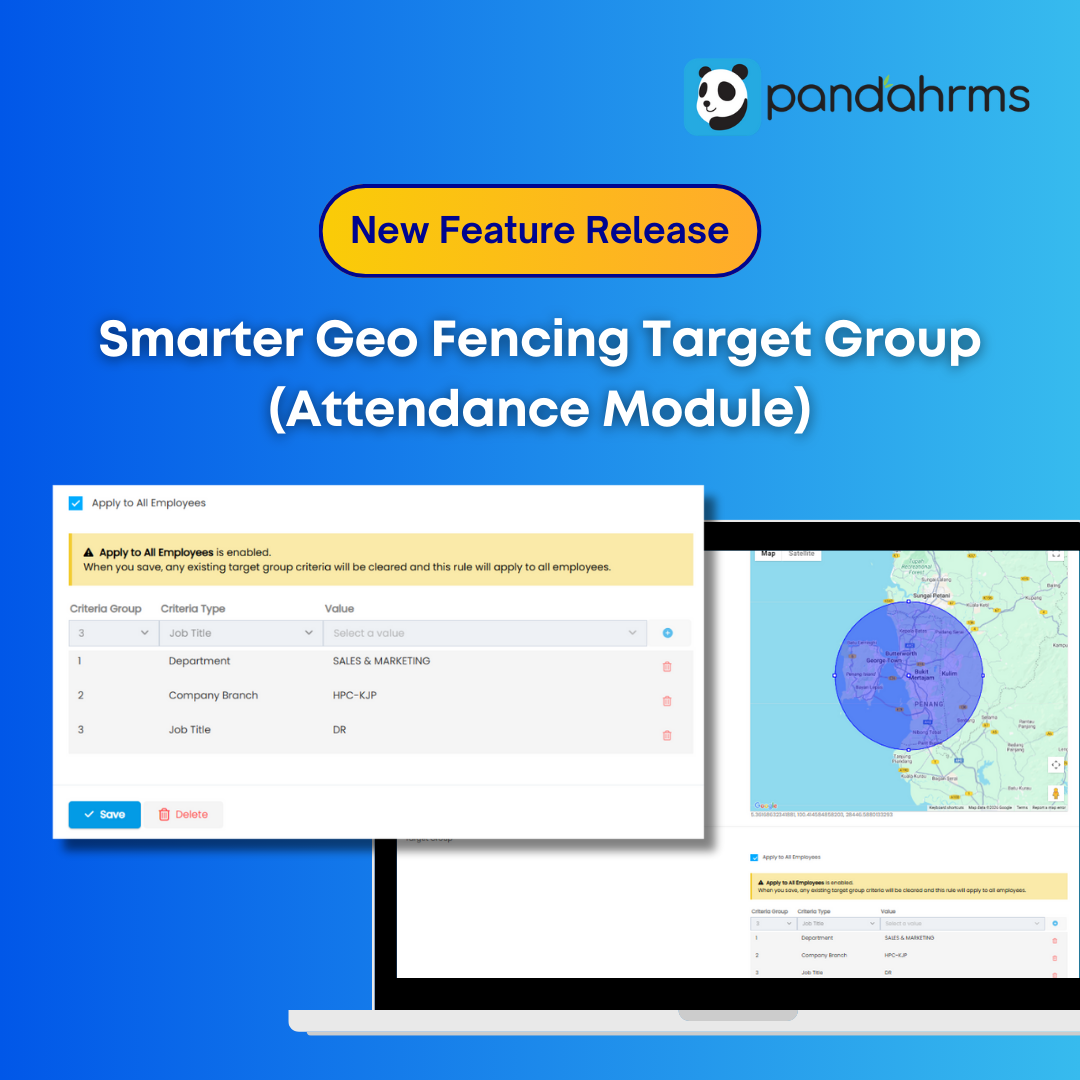
To address this, Pandahrms has released a new enhancement under Settings > Attendance > Geo Fencing > Target Group:
Target Group for Geo Fencing — designed to give employers better control, higher accuracy, and cleaner attendance records.
This update is now available for all customers.
Why We Introduced Geo Fencing Target Group
As businesses grow, attendance rules become more complex. Many Malaysian employers operate:- Multiple branches or outlets
- Warehouses, production floors, or restricted zones
- Different teams working in different physical locations
- Employees clocking in at the wrong location
- Attendance disputes due to unclear rules
- Manual monitoring and corrections by HR
What Is Geo Fencing Target Group?
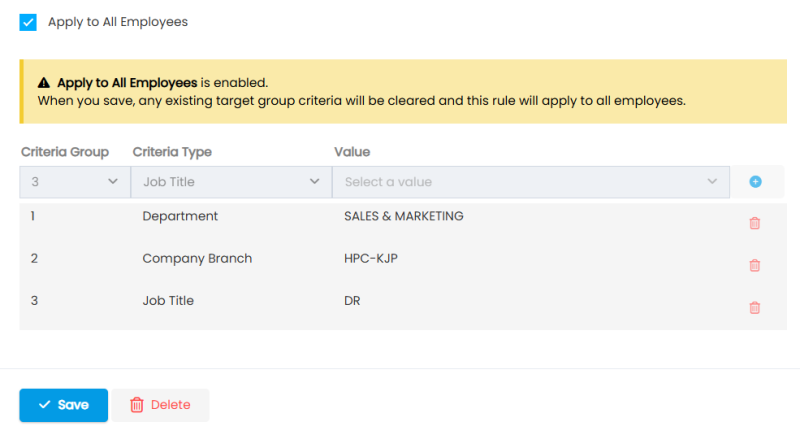
The Target Group feature allows employers to define who can clock in at a specific geofenced location. You now have two flexible options when setting up a clock-in location:Option 1: Apply to All Employees
By ticking “Apply to All Employees”, the selected geofence will be available to all employees in the company. This option is suitable for:- Head office (HQ)
- Main offices
- Branches where all staff are allowed to clock in
Option 2: Assign to Selected Employee Groups
If a location should only be accessible to specific employees, simply untick “Apply to All Employees”. You can then assign clock-in eligibility using Target Group criteria, including:- Department
- Company Branch
- Job Title
Practical Example: Multi-Location Setup
Consider a company with three locations:- Klang Office
- Penang Warehouse
- Melaka Office
- Klang Office → Apply to All Employees
- Melaka Office → Apply to All Employees
- Penang Warehouse → Only selected warehouse staff (filtered by department, branch, or job title)
- Only authorised employees can clock in at restricted locations
- No accidental or unauthorised clock-ins
- HR no longer needs to manually verify attendance records
Key Benefits for Employers & HR Teams
With the Geo Fencing Target Group feature, organisations gain:- Better control over attendance locations
- Reduced attendance errors and disputes
- Cleaner, more reliable attendance data
- Less manual monitoring by HR
- Clear rules for employees to follow
Designed for Growing Malaysian Businesses
Whether you operate:- Multiple branches
- Warehouses or production facilities
- Field teams with controlled access points
What HR Should Do Next
To start using this feature effectively, HR teams should:- Review all existing geo fencing locations under Settings > Attendance > Geo Fencing > Target Group
- Identify locations that should be restricted to specific teams or roles
- Decide whether each location should apply to all employees or selected target groups
- Set clear criteria using Department, Company Branch, or Job Title
- Inform employees of any new clock-in rules to avoid confusion