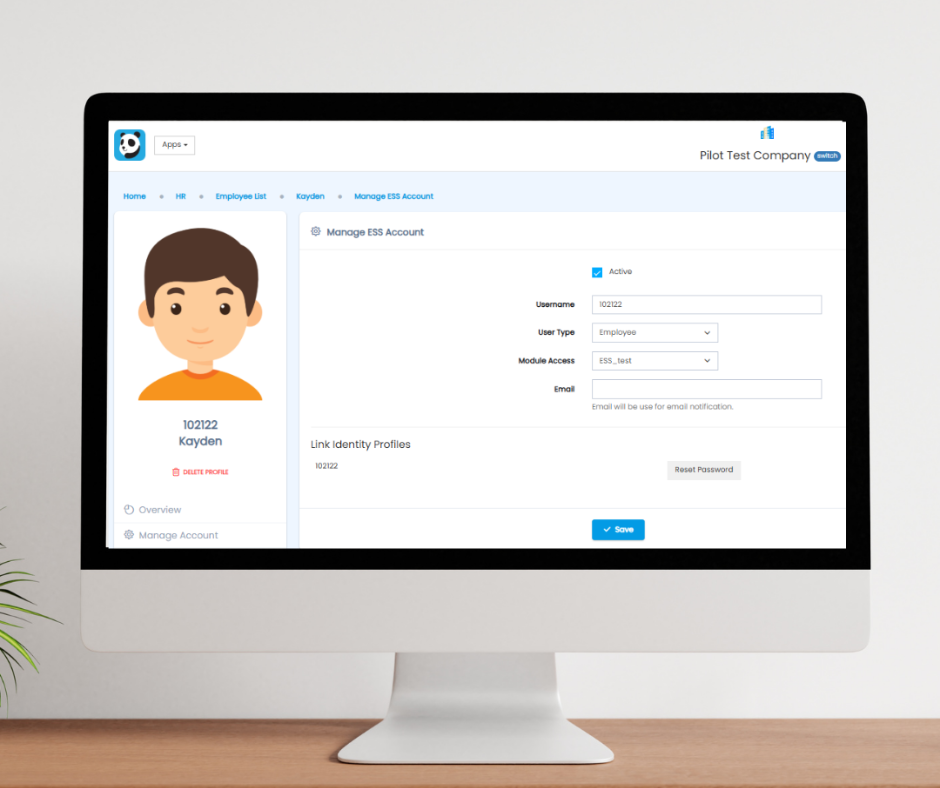
Reset an employee’s Pandahrms login password back to the system default in four clicks — and share the default username and password formats for local and foreign workers.
Employees may occasionally have trouble accessing their Pandahrms account — a forgotten password, or an “Invalid Password” error at login. When that happens, a system administrator or HR personnel can reset the employee’s password to the system default in a few clicks.
- You need admin access to the employee’s profile in Pandahrms.
- The reset sets the password back to the default format (see the table of defaults below).
- Passwords are case-sensitive.
Steps to Reset an Employee’s Password
1Open the Employee Profile
Navigate to the relevant employee’s profile within the Pandahrms system.
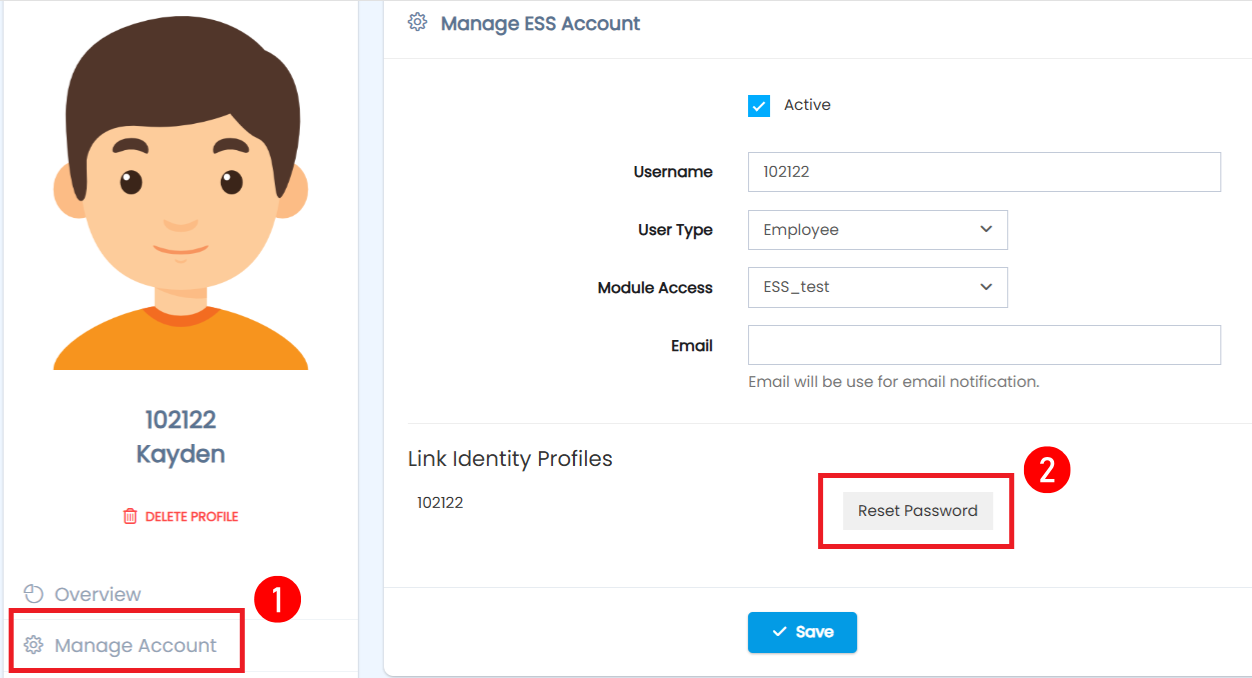
2Select “Manage Account”
In the employee’s profile, select the Manage Account option.
3Click “Reset Password”
Click the Reset Password button. This resets the employee’s password to the default format.
4Ask the Employee to Log In Again
Inform the employee to log in with the default credentials below. After a successful login, they should set a new password of their own for security.
Default Login Credentials
- Username: Employee Number
- Default password: last 6 digits of the employee’s IC number
- Username: Employee Number
- Default password: birth year and month in the format YYYYMM (example: born August 1990 → 199008)
Frequently Asked Questions
The employee still cannot log in after the reset. Why?
Check that they are typing the default password exactly — passwords are case-sensitive, and the default depends on whether the employee is registered as a local or foreign worker. Also confirm the username is the employee number, not an email address.
Does the employee have to change the password after the reset?
We strongly recommend it. After logging in with the default password, the employee should set a unique, secure password of their own.
Can employees reset their own password?
The reset described here is done by HR or a system administrator from the employee’s profile. If you are an employee, contact your HR department to request a reset.
Related Guides
More Pandahrms user guides: How to Manage the SKBBK Declaration (HR Admin Guide) and How to Declare SKBBK Participation (Employee Guide).
If you need further assistance, please contact your system administrator or reach out to our support team.