Open, track, close, and apply the SKBBK / Lindung 24 Jam declaration in Pandahrms — a step-by-step guide for HR admins, with a screenshot for every step.
The Skim Kemalangan Bukan Bencana Kerja (SKBBK) / Lindung 24 Jam declaration lets your local employees declare whether they wish to join the SKBBK scheme, directly from their Pandahrms ESS dashboard. As HR admin, you control when the declaration opens and closes, monitor who has responded, and apply the answers to each employee’s profile in one click.
- Only local employees are listed in the declaration. Foreign workers are not included — SKBBK remains mandatory for them.
- Employees with no response are never changed when you apply the results.
- You need edit rights on the Module Access Template (Settings → Security) for Part 1.
Part 1: Enable SKBBK Declaration Access
1Open Settings
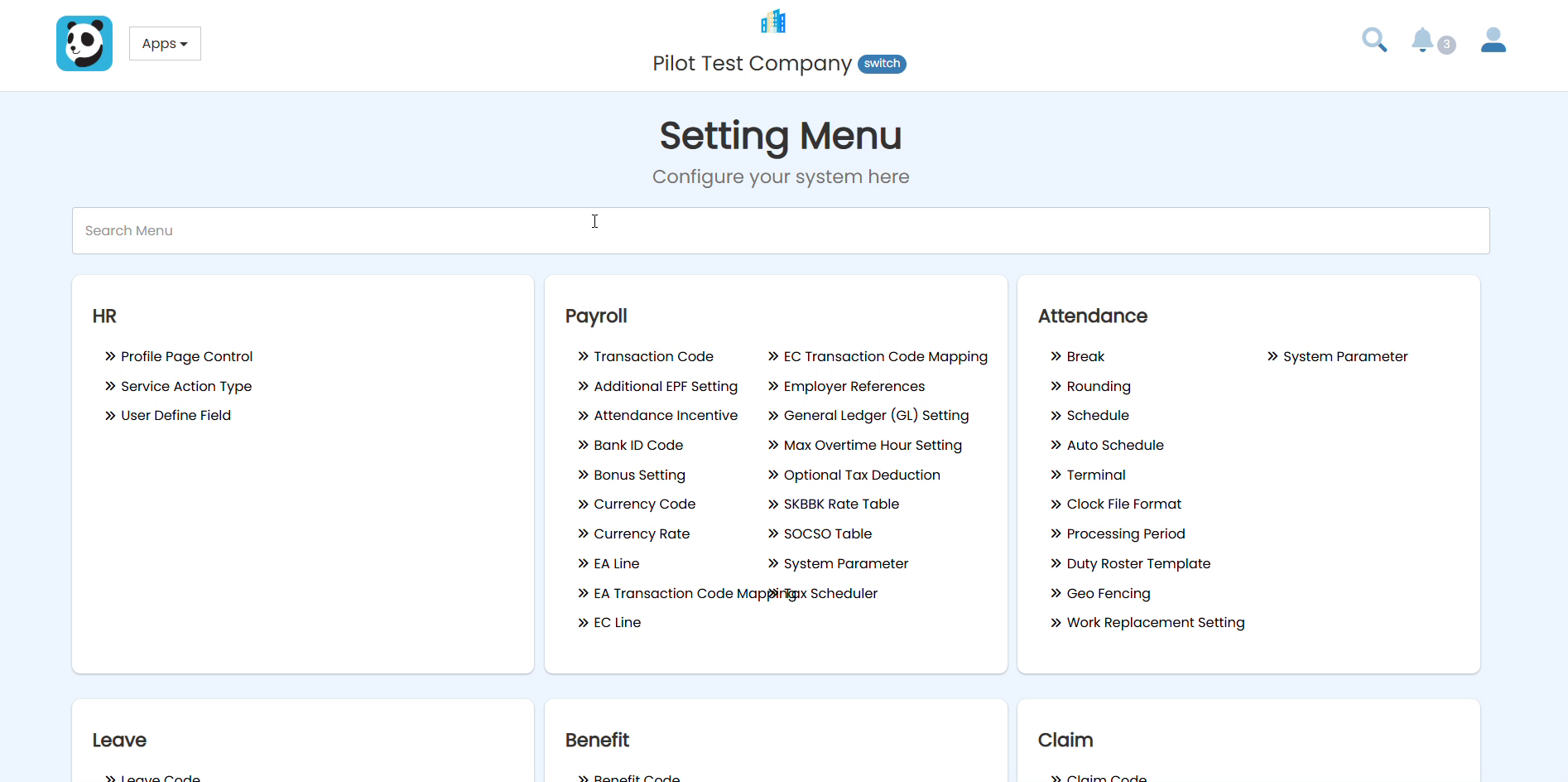
Before the SKBBK Declaration menu appears in the HR Menu, it must first be enabled in the Module Access Template. Go to Apps → Settings.
2Search for Module Access Template
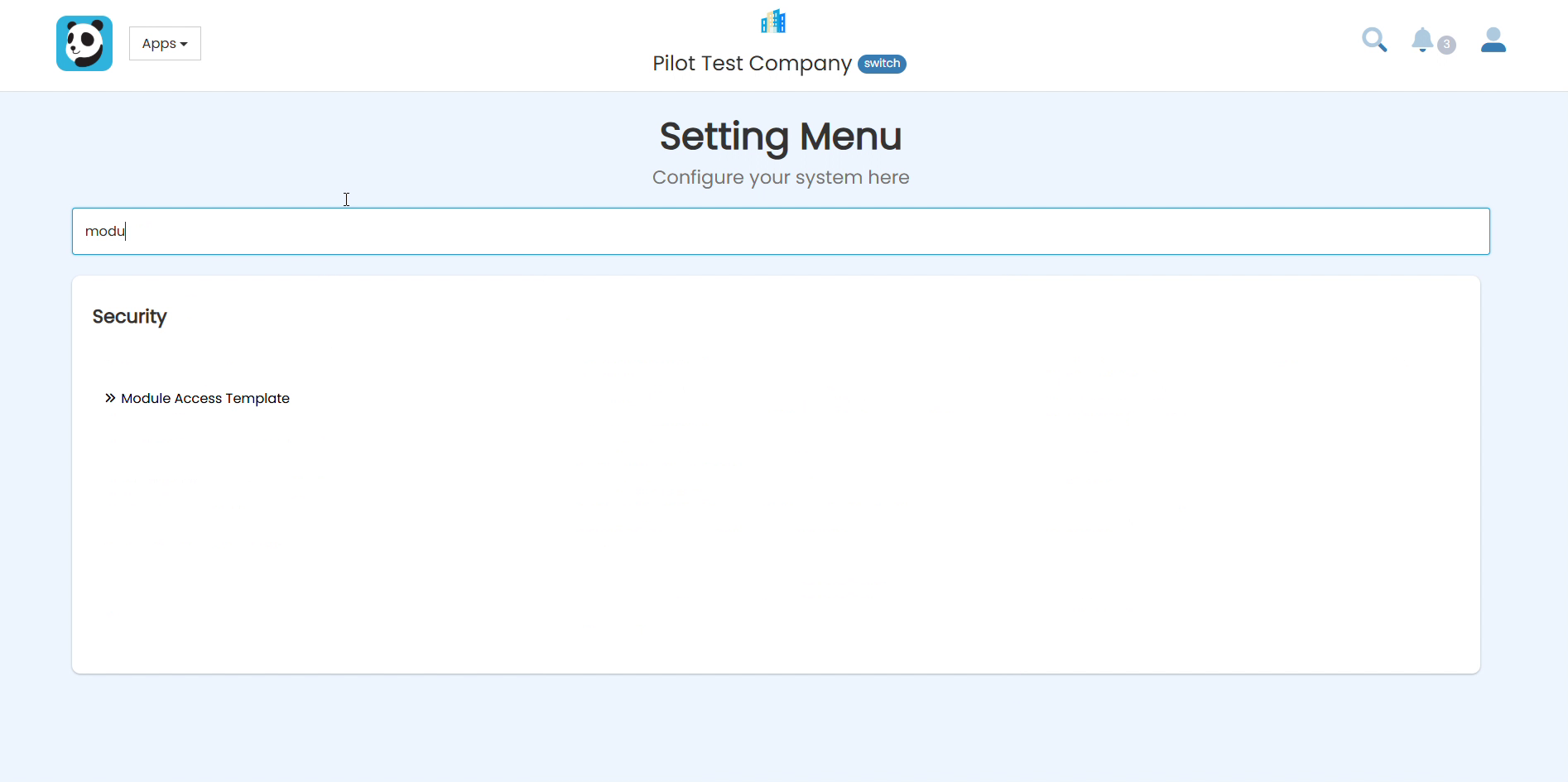
In the Setting Menu, type module in the search box. Under the Security section, click Module Access Template.
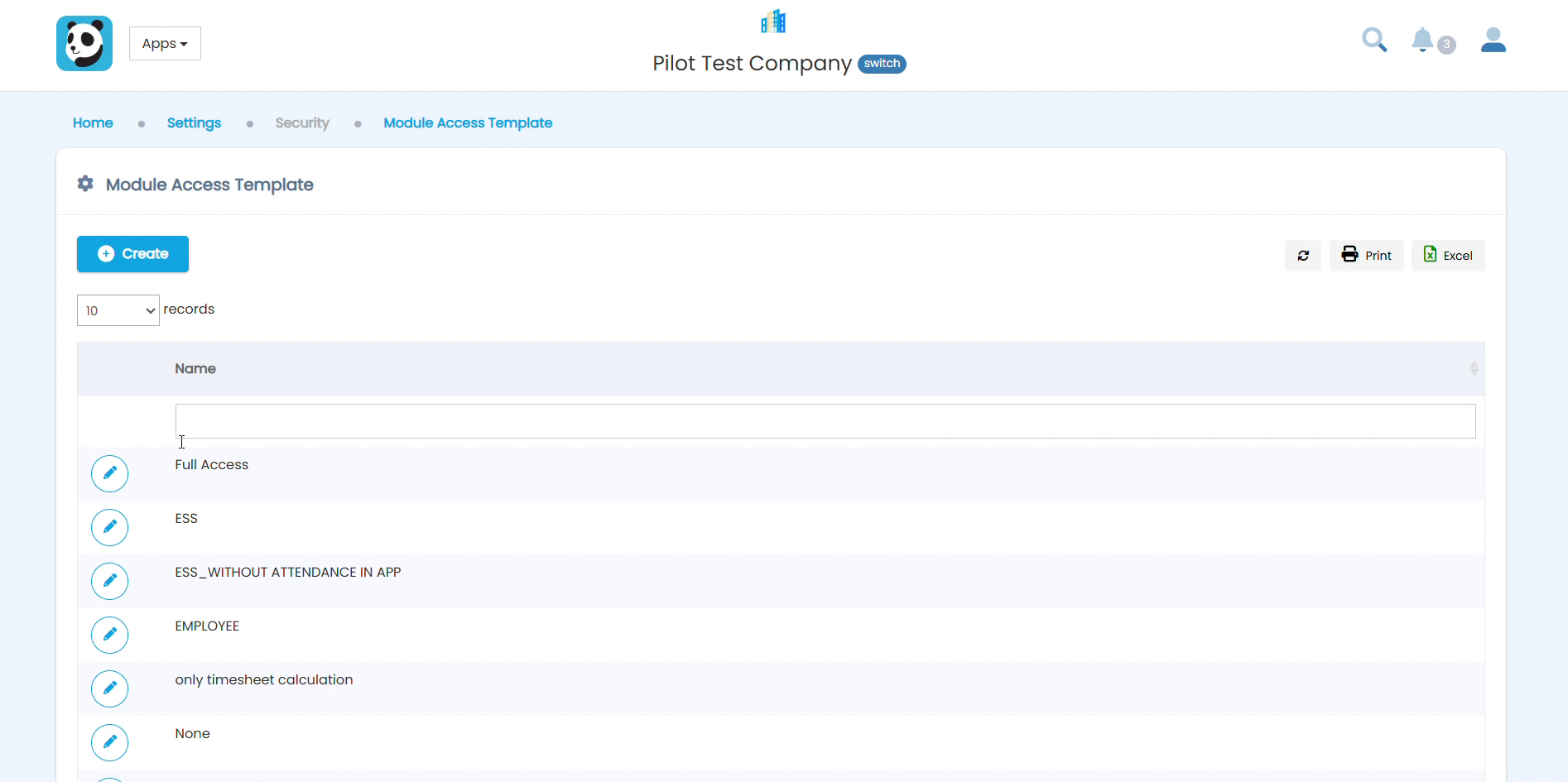
3Select and Edit the Template
The Module Access Template list will appear. Click the edit (pencil) icon next to the template assigned to your HR admin users (e.g. Full Access).
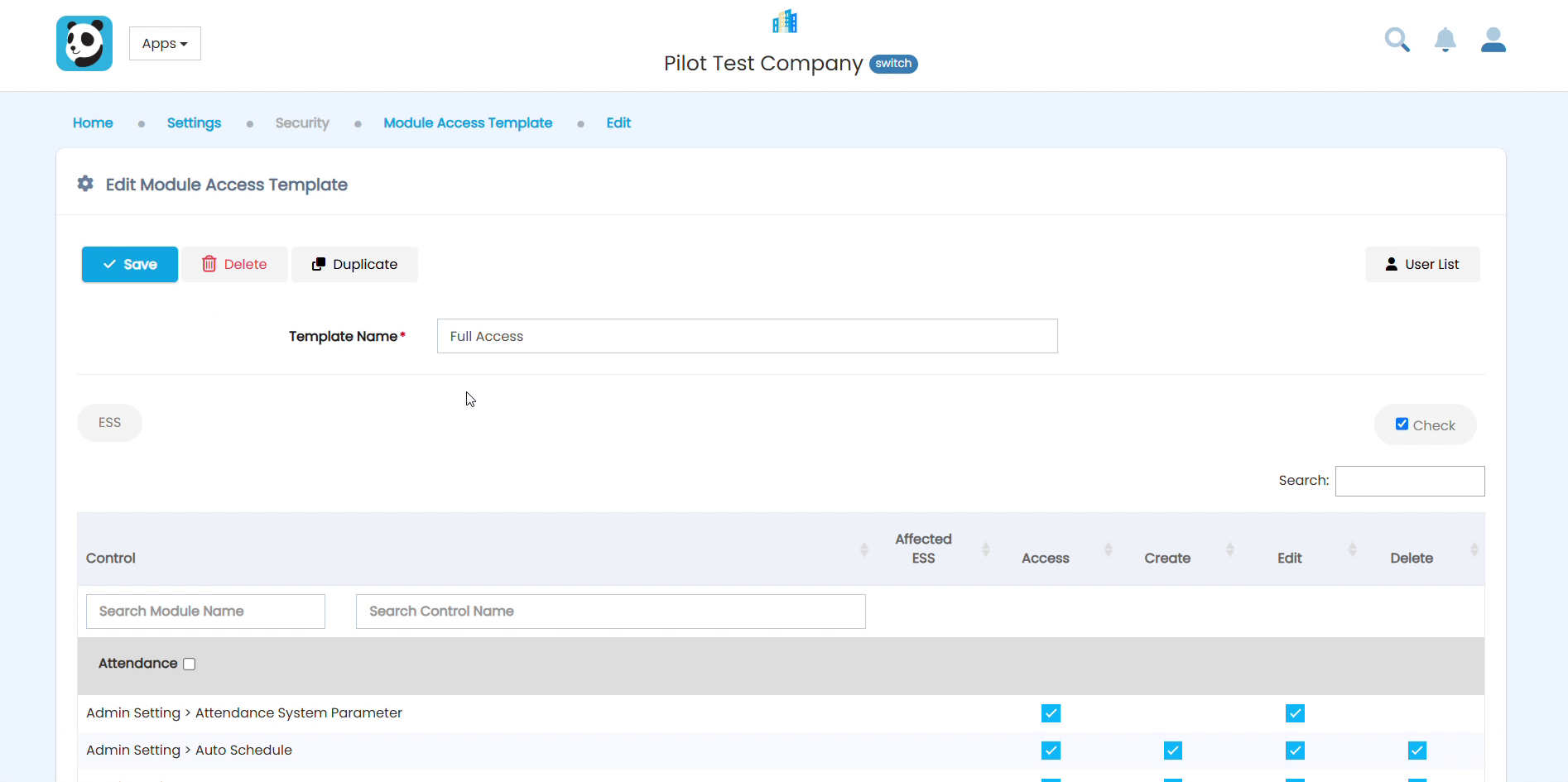
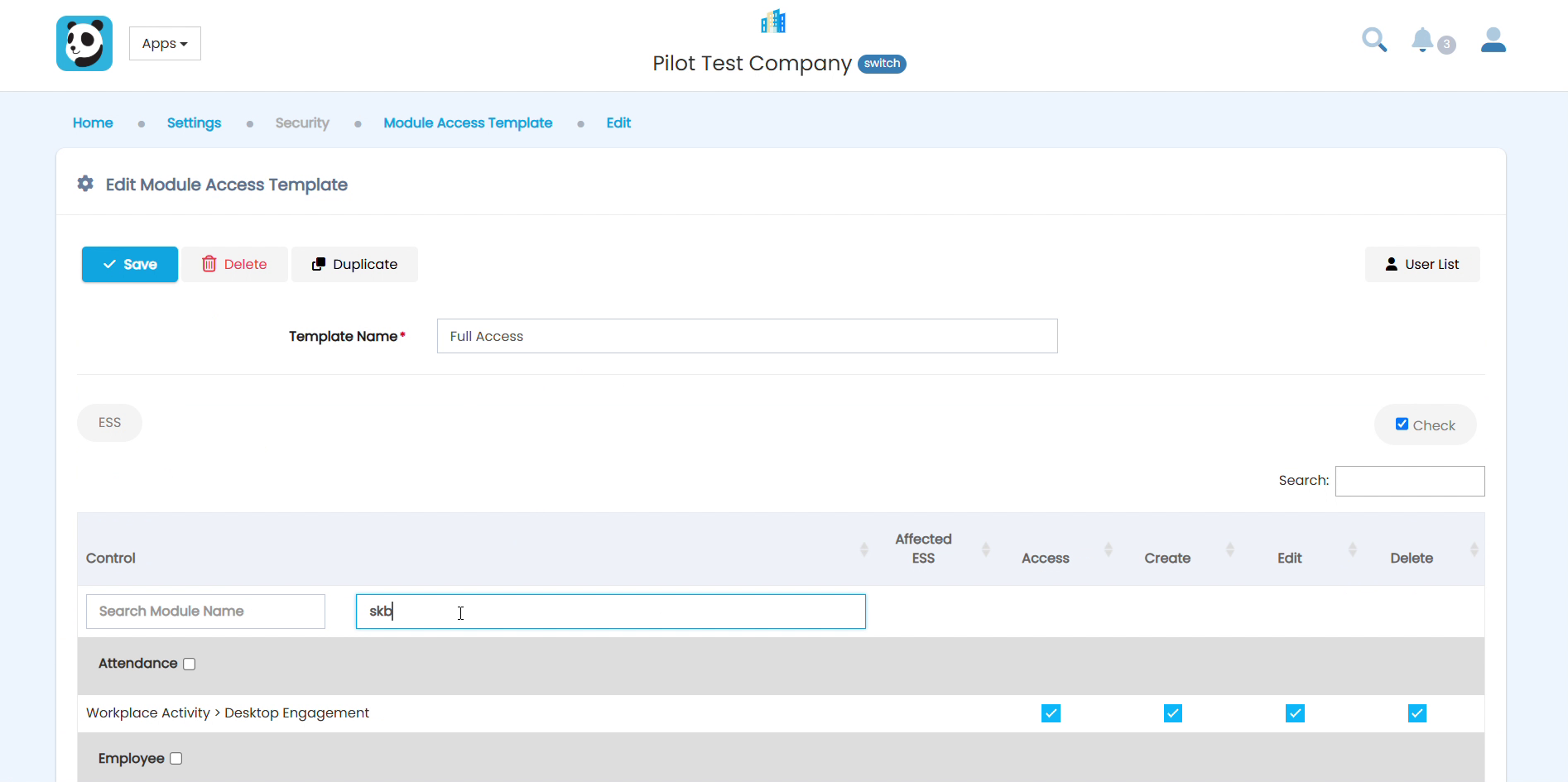
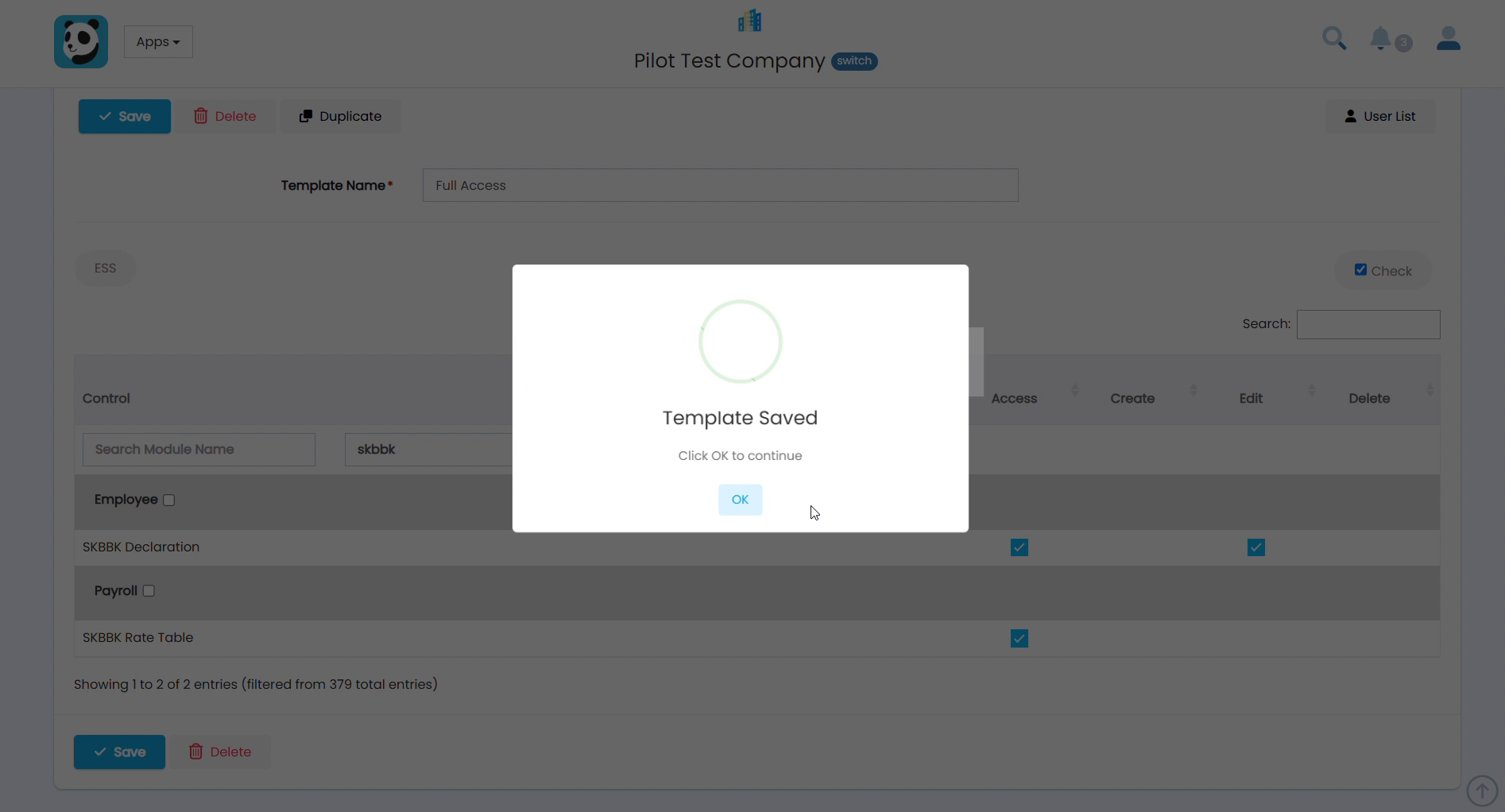
4Search and Enable SKBBK Declaration
In the Search Control Name box, type skbbk. The SKBBK Declaration row will appear under the Employee section. Tick the Access and Edit checkboxes, then click Save.
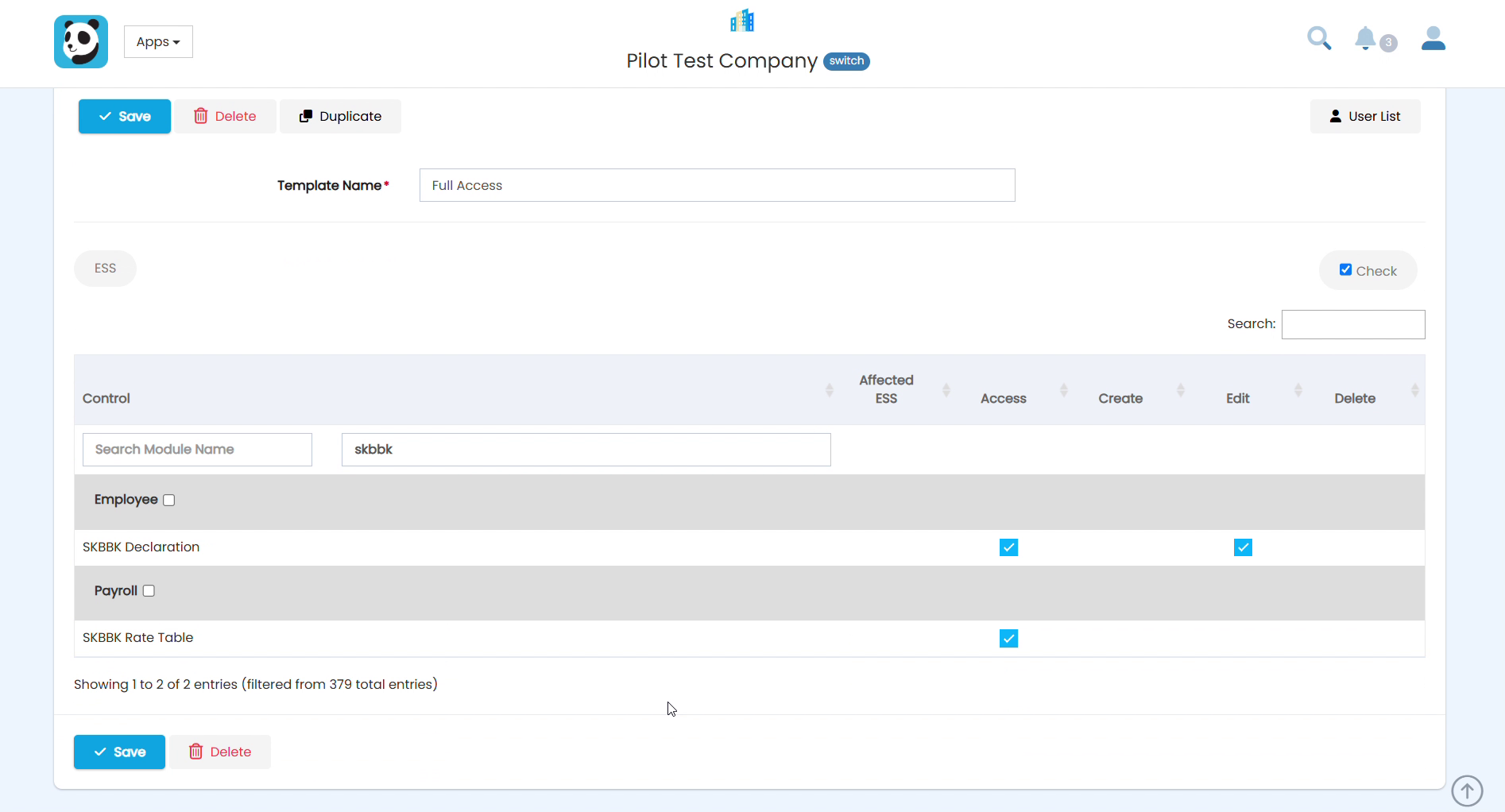
5SKBBK Declaration Now Visible in HR Menu
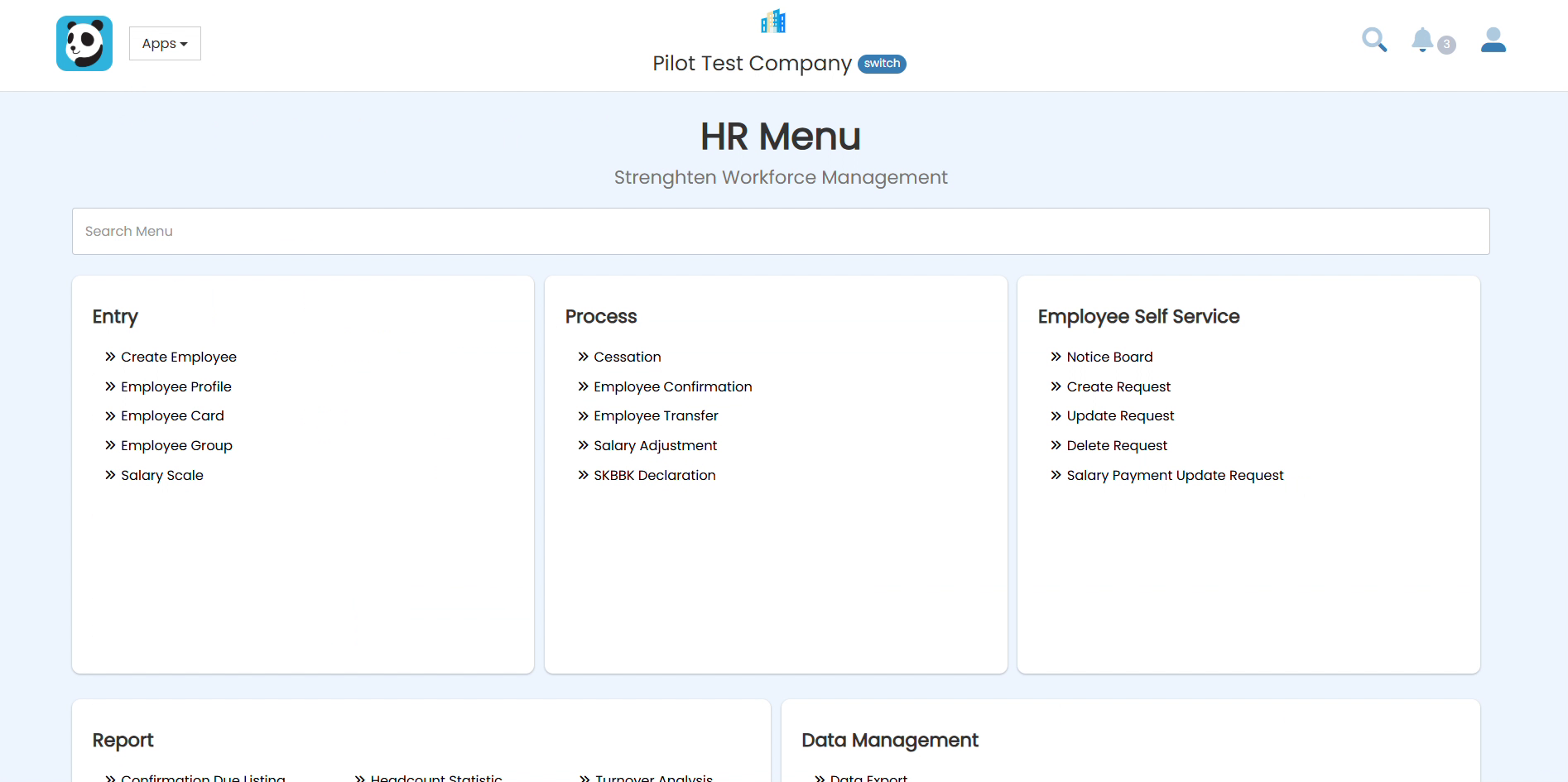
Click Apps → HR. Under the Process section, SKBBK Declaration is now visible. Click it to begin managing declarations.
Part 2: Run the Declaration Exercise
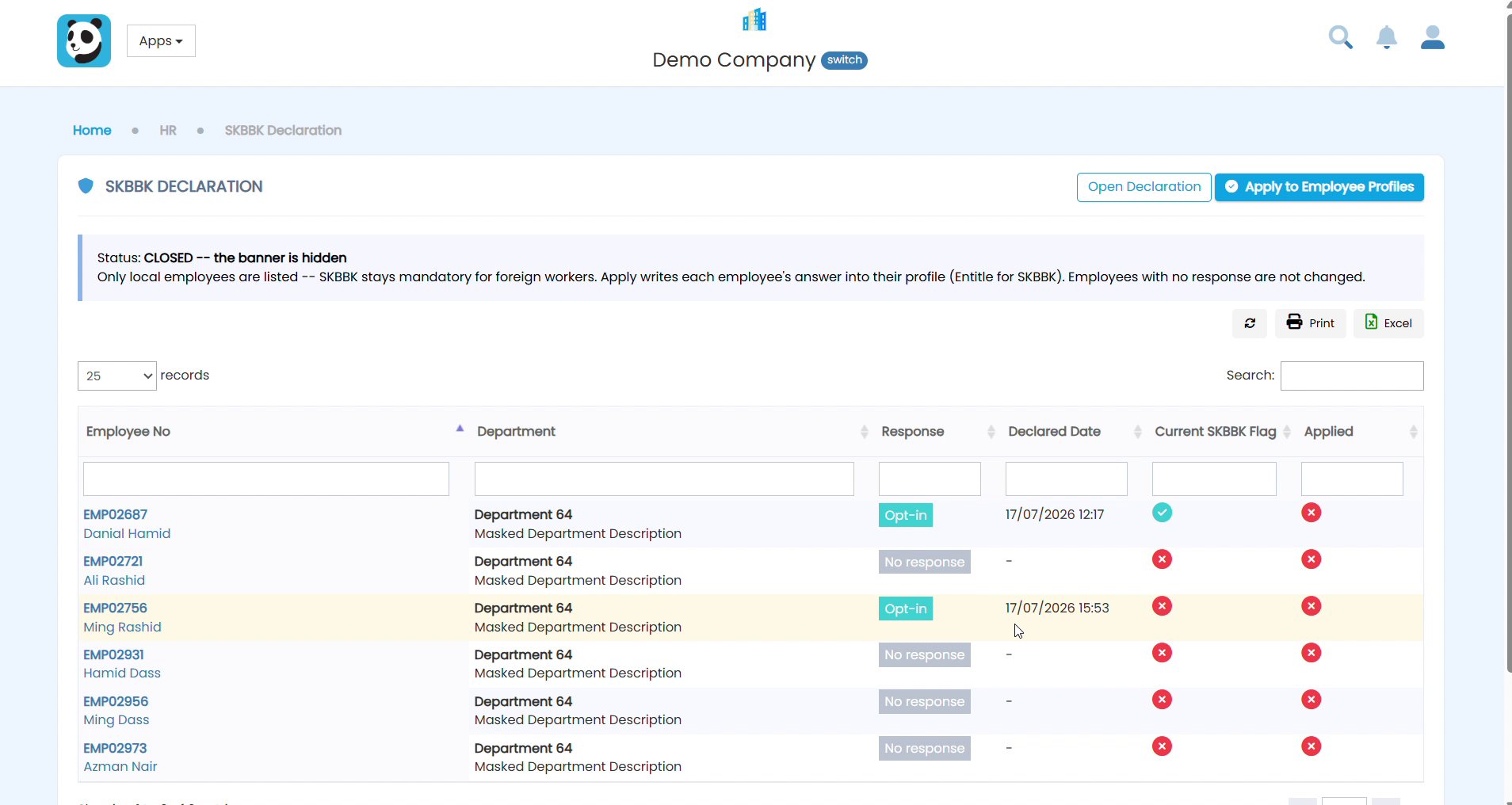
6Open the Declaration
The page will load showing Status: CLOSED. Click the Open Declaration button to allow employees to declare their SKBBK participation from their ESS dashboard.
7Declaration Is Now Open
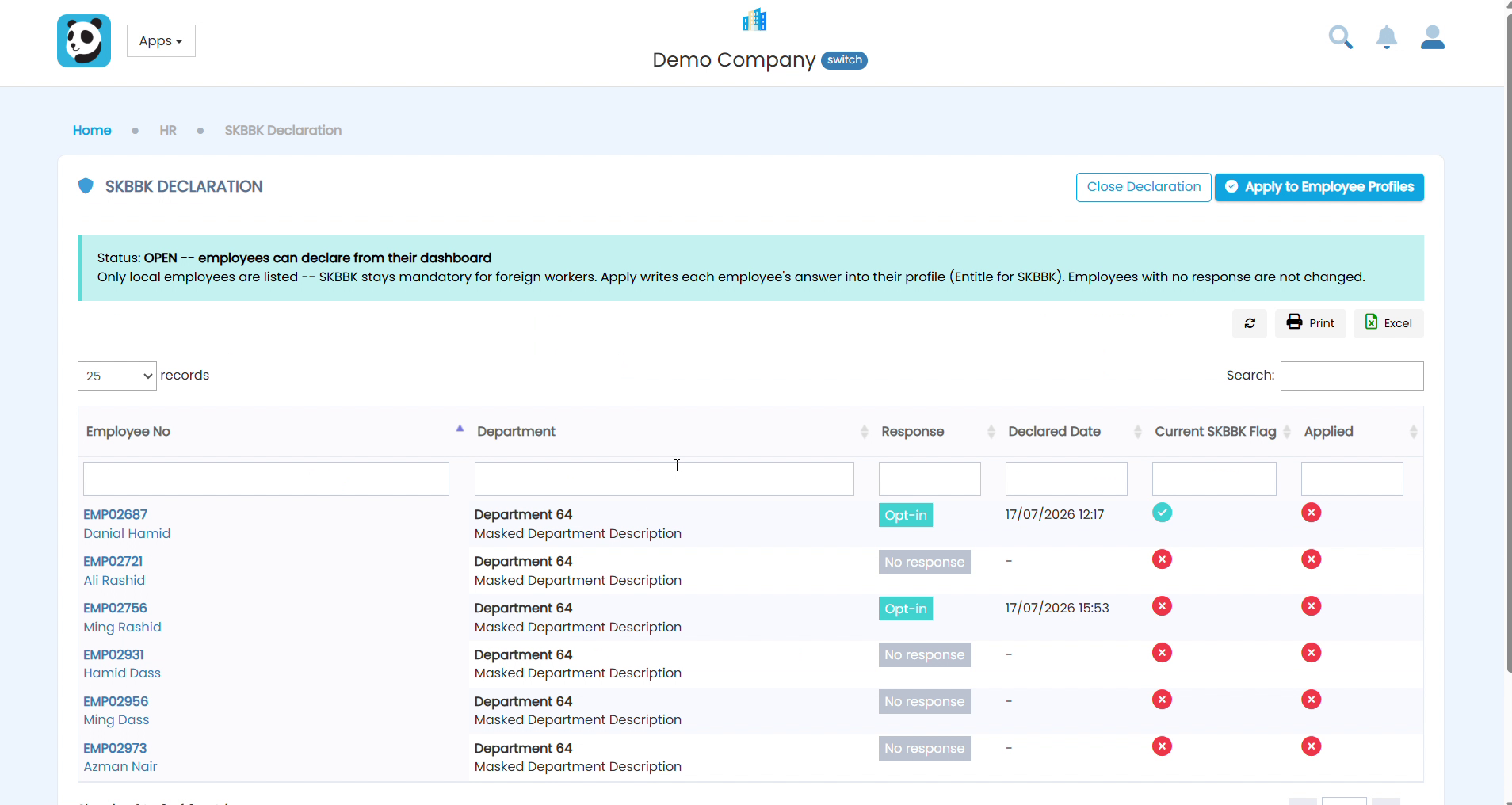
Once opened, the status changes to OPEN — employees can now declare from their ESS dashboard. Inform your staff and give them a clear deadline to respond.
8Review Employee Responses
The page lists all active local employees and their response status. Employees who have not responded show No response. Follow up with those who have not declared yet.
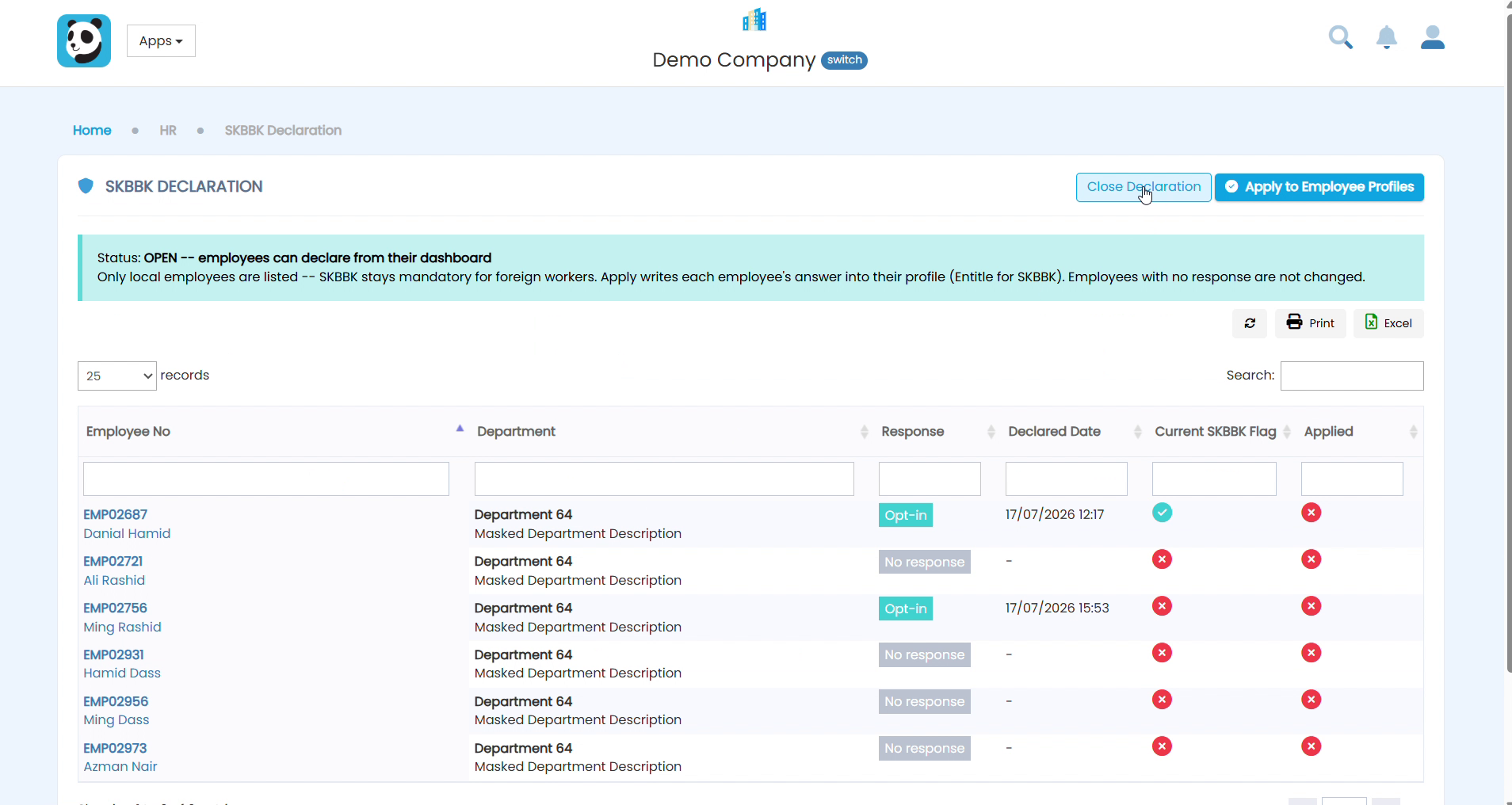
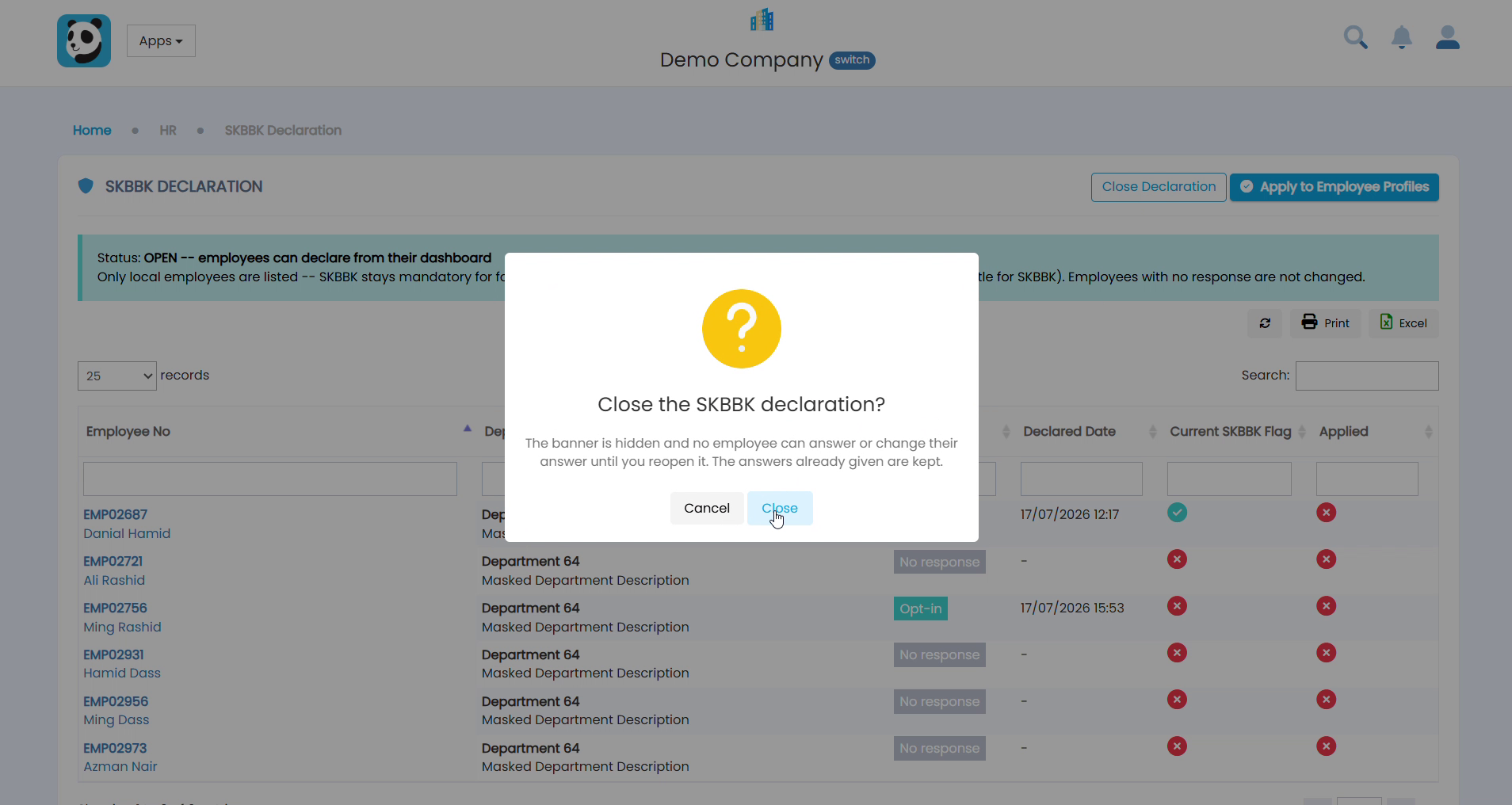
9Close the Declaration
Once all employees have declared (or the deadline has passed), click Close Declaration and confirm. The ESS banner will be hidden and employees can no longer change their answer.
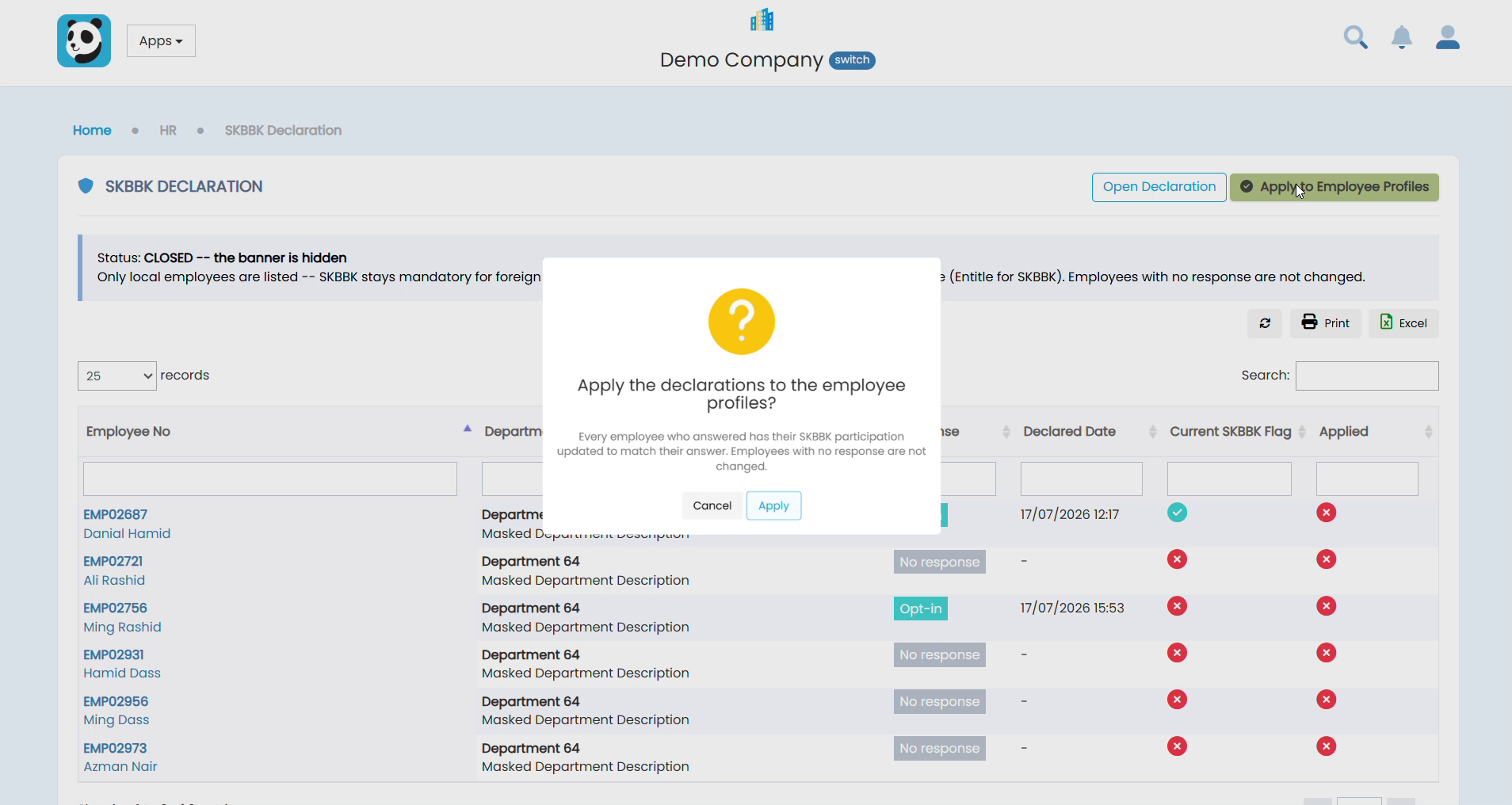
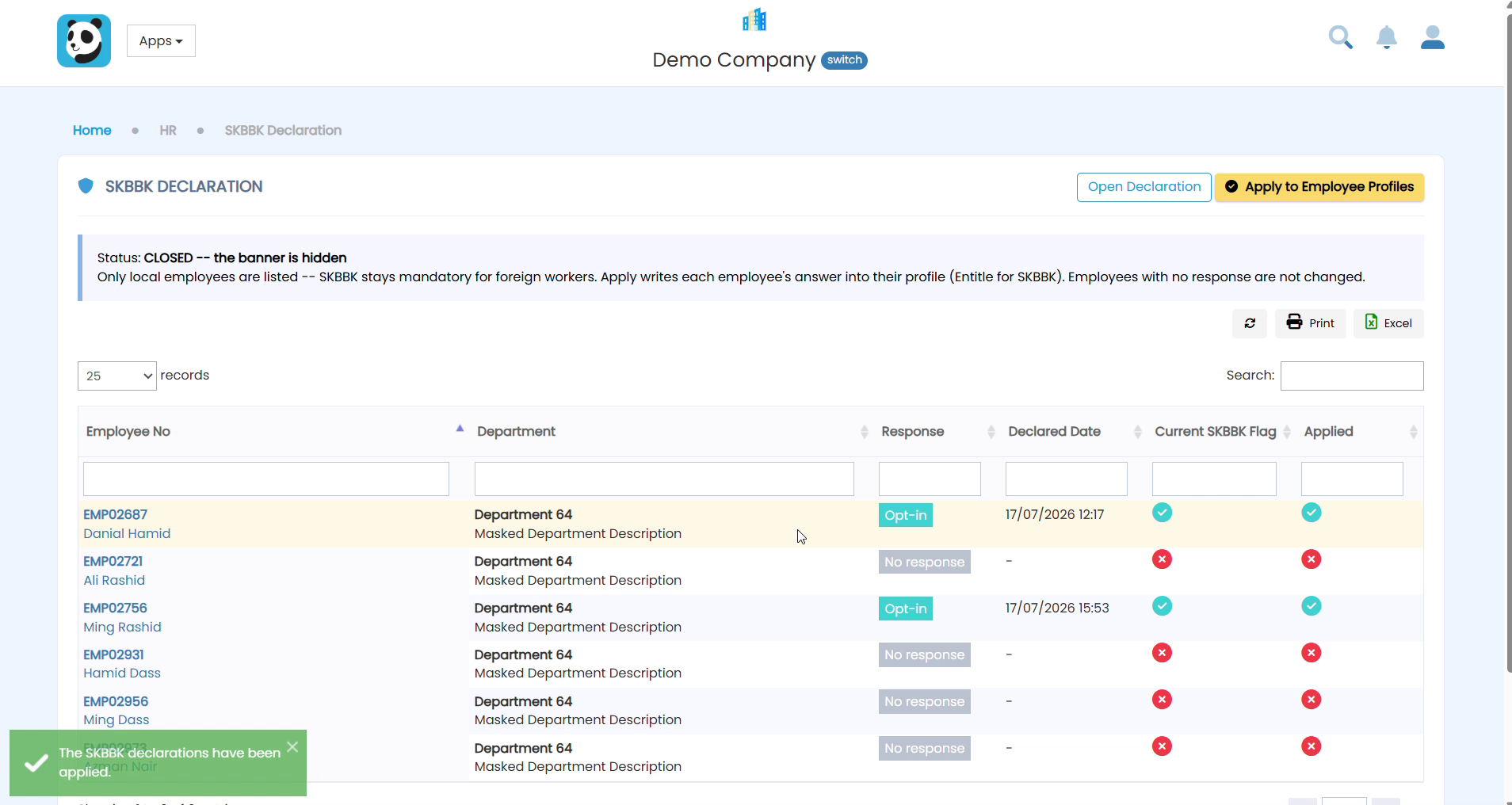
10Apply Declarations to Employee Profiles
Click Apply to Employee Profiles and confirm. This updates the SKBBK participation setting for all employees who responded. Employees who did not respond are left unchanged.
Frequently Asked Questions
Why are foreign workers not in the list?
SKBBK is mandatory for foreign workers, so there is nothing for them to declare. The declaration exercise applies to local employees only.
What happens to employees who never respond?
Nothing. When you click Apply to Employee Profiles, only employees who answered are updated. Employees with no response keep their current SKBBK setting.
Can employees change their answer after I close the declaration?
No. Closing the declaration hides the ESS banner and locks all answers. You can reopen the declaration if you need to collect more responses.
Related Guide
Share this guide with your staff so they know what to do on their side: How to Declare SKBBK Participation in Pandahrms (Employee Guide).
If you need further assistance, please contact your system administrator or reach out to our support team.